Set door rules and user permissions in the administration panel.
Visitor QR verification
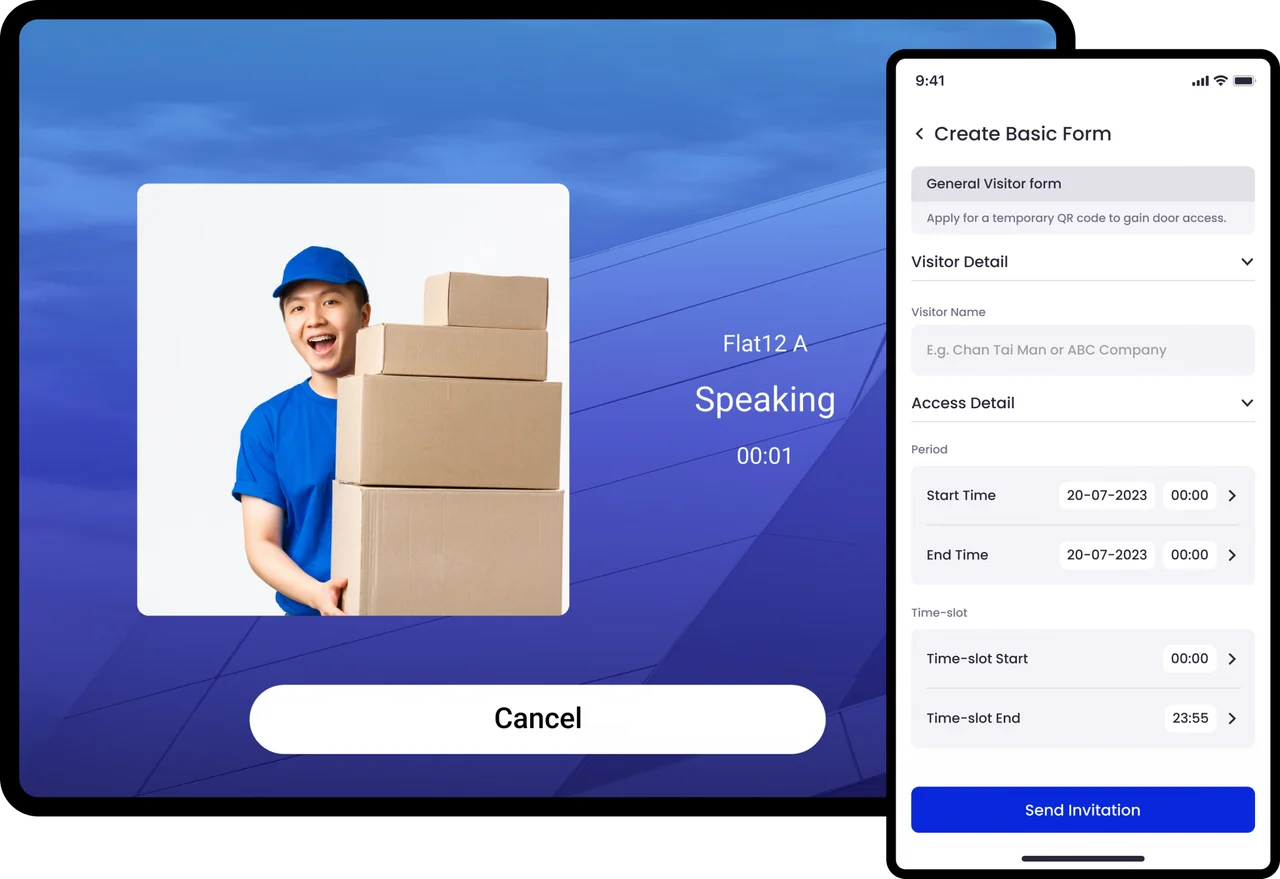
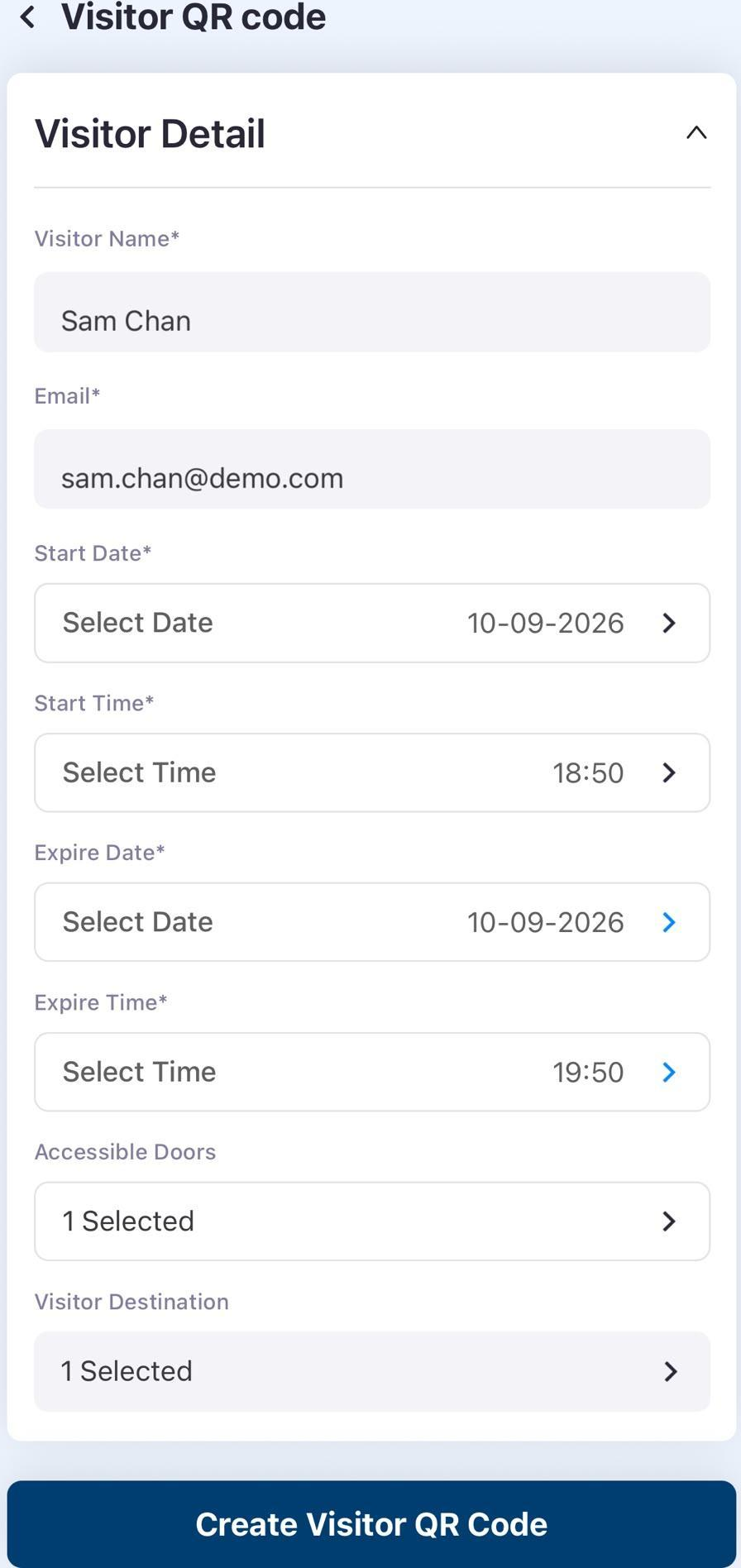
Create temporary QR passes in the app for guests. Guests can add a pass to their e-wallet or calendar; administrators can disable temporary QR codes.
Access and attendance records
Review cloud records and export reports using report templates.
Everyday scenarios
Resident and staff entry
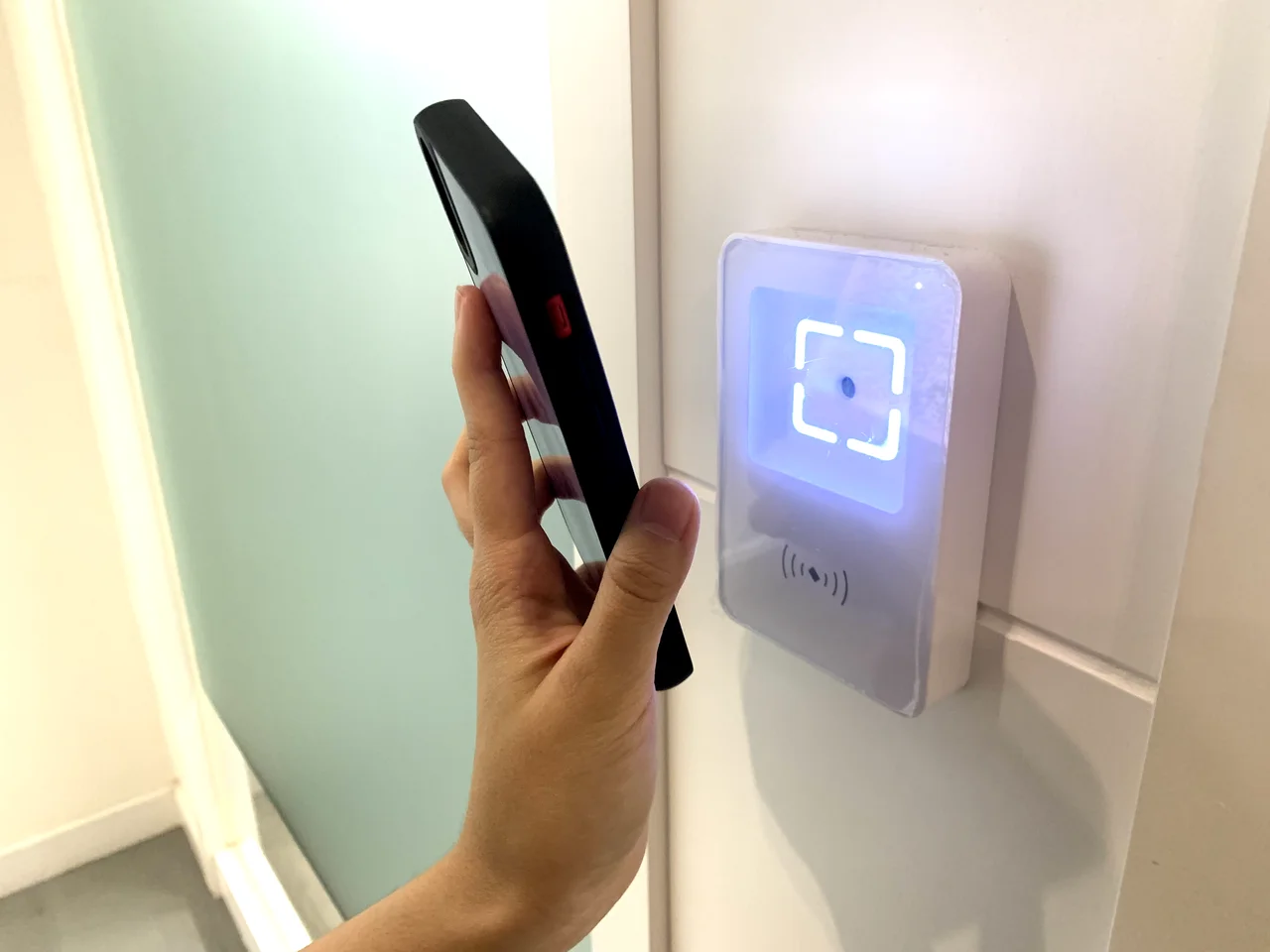
Use QR codes or NFC cards at connected access points according to the assigned door permissions.
Visitor arrival
Visitors complete a registration form before arrival. Staff can verify a temporary QR pass or confirm an arrival through a connected video intercom.
How it works
Visitor pass settings
01
Set access rules
Define users, permitted doors and visitor arrangements in the admin panel.
Verification at the reader
02
Verify at the access point
Use the configured QR, NFC or connected intercom process.
Access records
03
Review records
Check access and attendance records and export the required reports.
Plan your setup
Door equipment
Confirm the doors, turnstiles or electric gates and assess API or dry-contact integration.
User permissions
List resident, staff and visitor access requirements.
Connected services
Confirm video intercom, attendance and reporting requirements.
Common questions
Which entry methods are supported?
Use QR codes or NFC cards at connected access points according to the assigned door permissions.
Can visitors register before arrival?
Create temporary QR passes in the app for guests. Guests can add a pass to their e-wallet or calendar. Administrators can disable temporary QR codes, while staff can review and share passes from the records.
Can existing door equipment be connected?
Confirm the doors, turnstiles or electric gates and assess API or dry-contact integration.
What records can staff review?
Review cloud records and export reports using report templates. Administrators can also send push notifications through the admin panel.